Browsing Objects with the TUI
This guide walks through s3-orchestrator tui, the built-in terminal UI. It is a read-only way to explore the object namespace, see exactly which backends hold a copy of an object, and check backend status - without leaving the shell or opening the web dashboard.
Overview
A persistent left navigation bar switches between sections; the content area to its right renders the active one:
- Files - a hierarchical listing of the object namespace, one prefix at a time (directories collapse into common prefixes, just like
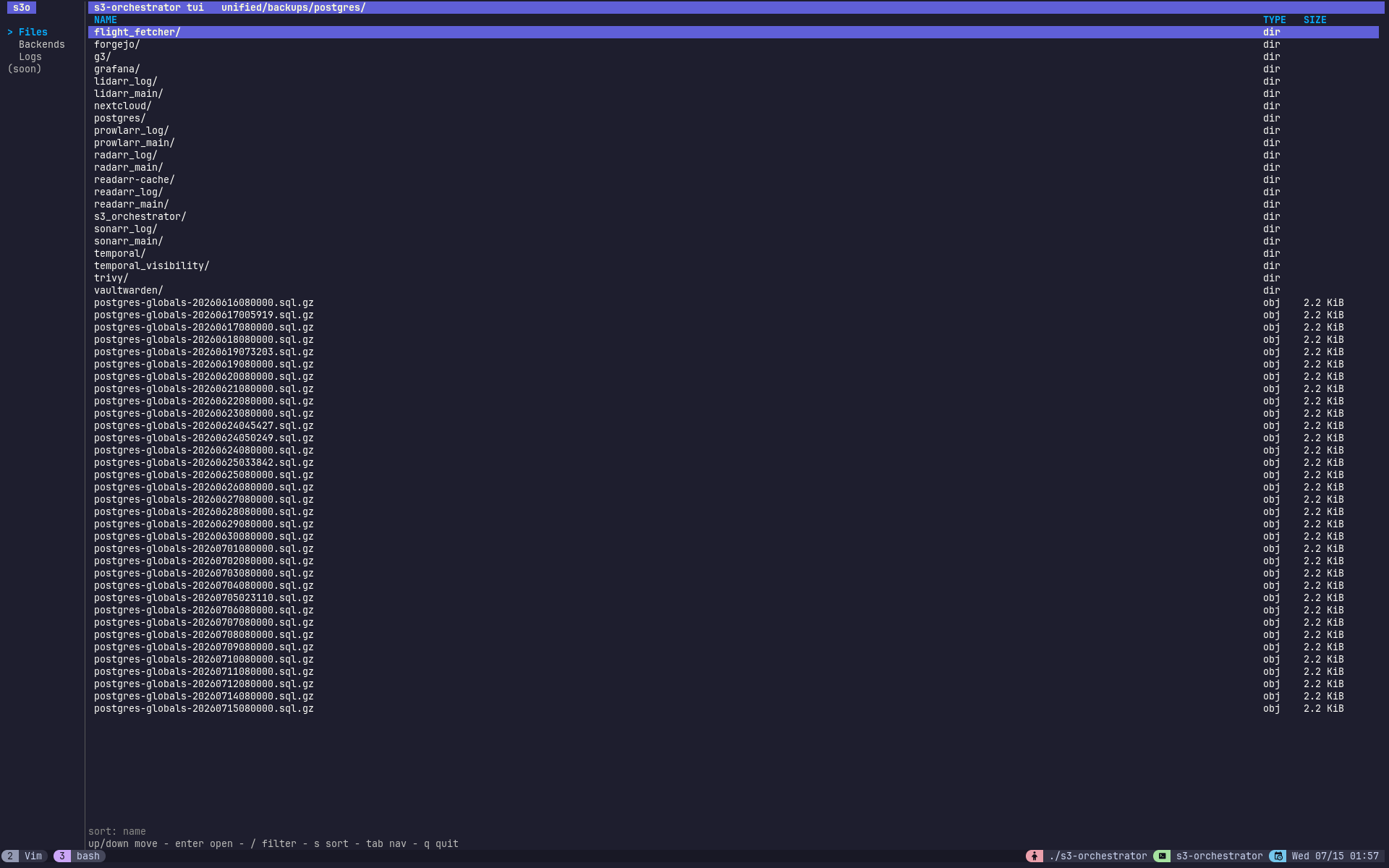
aws s3 ls). Large prefixes page in as you scroll. Opening an object swaps the content area for the Inspector, which lists every backend copy of that object with its size, age, encryption status, key id, and content-hash prefix - the replica-placement view that makes multi-backend storage legible. - Backends - one row per configured backend with its circuit-breaker health, drain state, quota usage, object count, and per-period request and transfer counters.
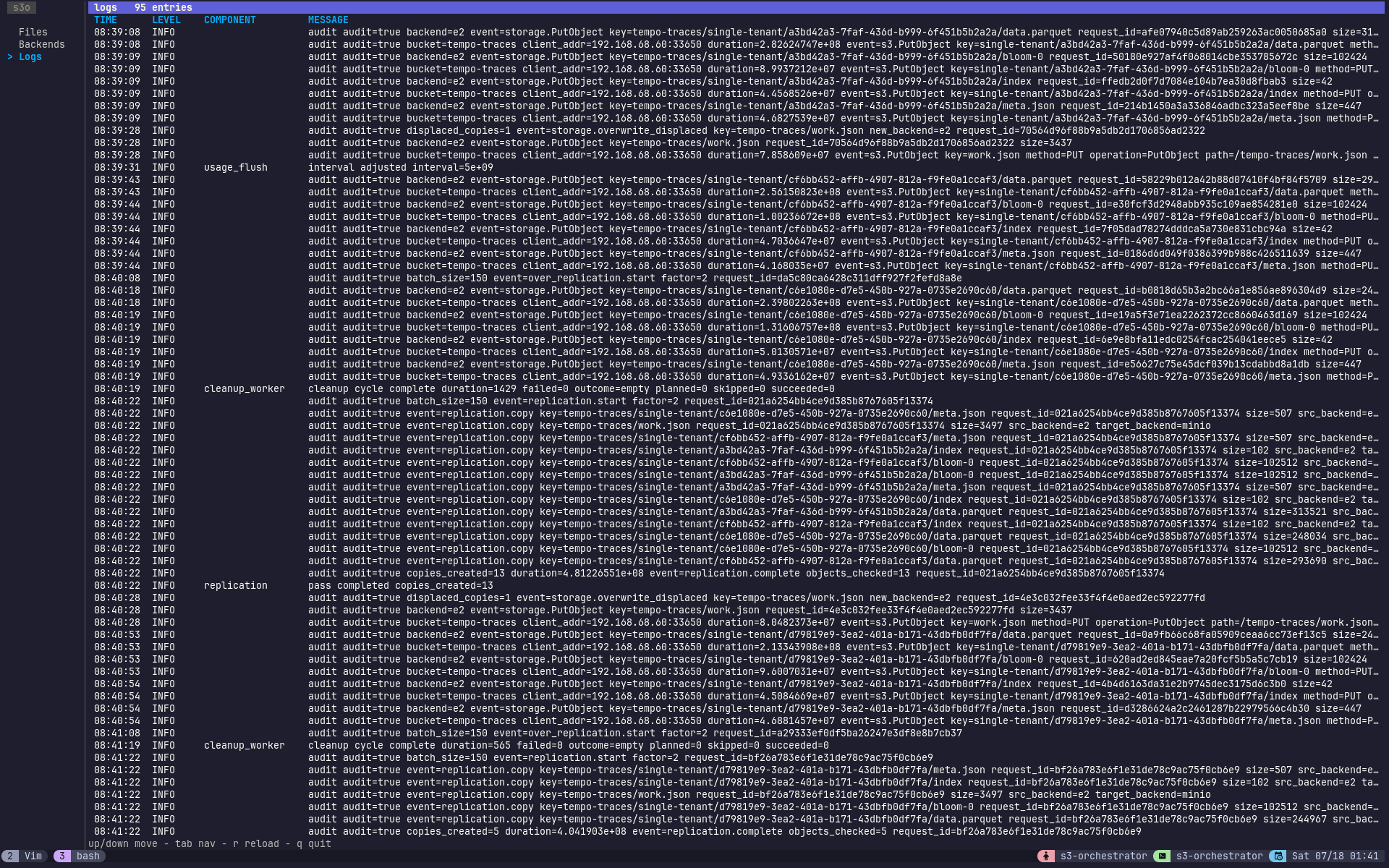
- Logs - recent structured log entries from the instance’s in-memory log buffer (the same source the web dashboard’s logs pane reads): time, level, component, and a human-readable message with its attributes appended as
key=valuepairs.
The pane that currently has keyboard focus renders with a bright title bar while the other is muted, so it is always clear whether keys drive the sidebar or the content.
Everything is read-only. The TUI issues GET requests to the admin API (/admin/api/objects for the listing, /admin/api/object-locations for the inspector, /admin/api/status for backends) and never mutates state.
Prerequisites
- A running orchestrator instance with the admin API enabled (
ui.admin_token, orui.admin_keyas a fallback - see the configuration walkthrough). - The admin token, resolved the same way as the
adminsubcommand: flag, then environment, then config file.
Step 1: Point the TUI at your instance
The TUI resolves the server address and admin token with the precedence flag → environment → config file. For a local instance the bundled config.yaml already carries both, so this is enough:
To target a remote instance without a local config, set the environment variables:
Or pass them as flags:
Step 2: Navigate the object namespace
The TUI opens on the Files section at the root prefix. Move the selection with the arrow keys; open the highlighted row with enter. tab moves focus to the sidebar (arrow keys then move the highlight, enter opens a section), and f / b / l jump straight to Files, Backends, or Logs.
| Key | Action |
|---|---|
tab | Move focus between the sidebar and the content area |
f | Jump to the Files section |
b | Jump to the Backends section |
up / down | Move the selection (or the sidebar highlight when it has focus) |
enter / right / l | Open: a sidebar section, a prefix, or the inspector on an object |
backspace / left / h | Go up one prefix; from the inspector or Backends, return to where you were |
/ | Filter the current listing by substring |
s | Cycle the sort order (name / size) |
esc | Clear the filter; from the inspector or Backends, step back |
r | Reload the current view |
q / ctrl+c | Quit |
Long prefixes load lazily - scrolling past the bottom of a truncated page pulls the next batch, so you can walk a bucket with millions of keys without loading it all at once.
To find something in a crowded prefix, press / and type - the listing narrows to matching names as you type (the status line shows how many of the loaded rows match), and esc clears the filter. Press s to cycle the sort order between name and size; directories always sort ahead of objects. Sizes render in binary units (KiB, MiB, GiB).
Step 3: Inspect an object’s copies
Highlight an object (not a directory) and press enter to open the inspector. Each row is one backend copy:
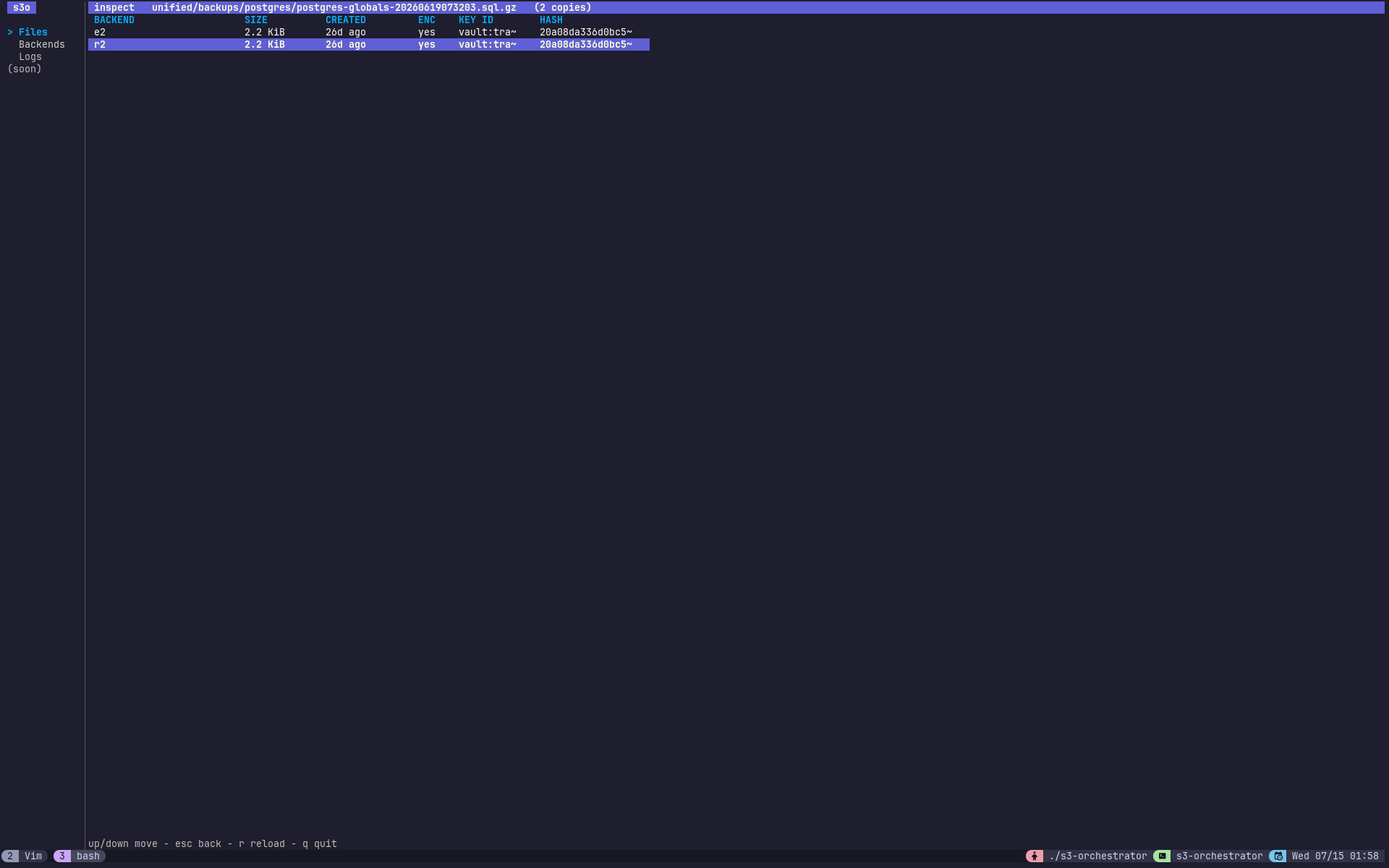
Reading the columns:
- BACKEND - the backend the copy lives on.
- SIZE - stored size in binary units (ciphertext size when the copy is encrypted).
- CREATED - how long ago the copy was recorded.
- ENC - whether the copy is envelope-encrypted.
- KEY ID - the master key that wrapped this copy’s data-encryption key.
- HASH - a prefix of the plaintext SHA-256, once a hash has been computed.
Two copies with matching sizes and hashes is a healthy replicated object. A single row means the object is under-replicated (or replication is disabled); a mismatch in size or hash across copies is worth investigating.
Tip
The inspector shows encryption metadata only. The wrapped data-encryption key is never sent over the admin API - only the encrypted flag and the wrapping key_id are exposed.
Step 4: Check backend status
Press b (or select Backends in the sidebar) to switch to the status view. Each row is one configured backend:
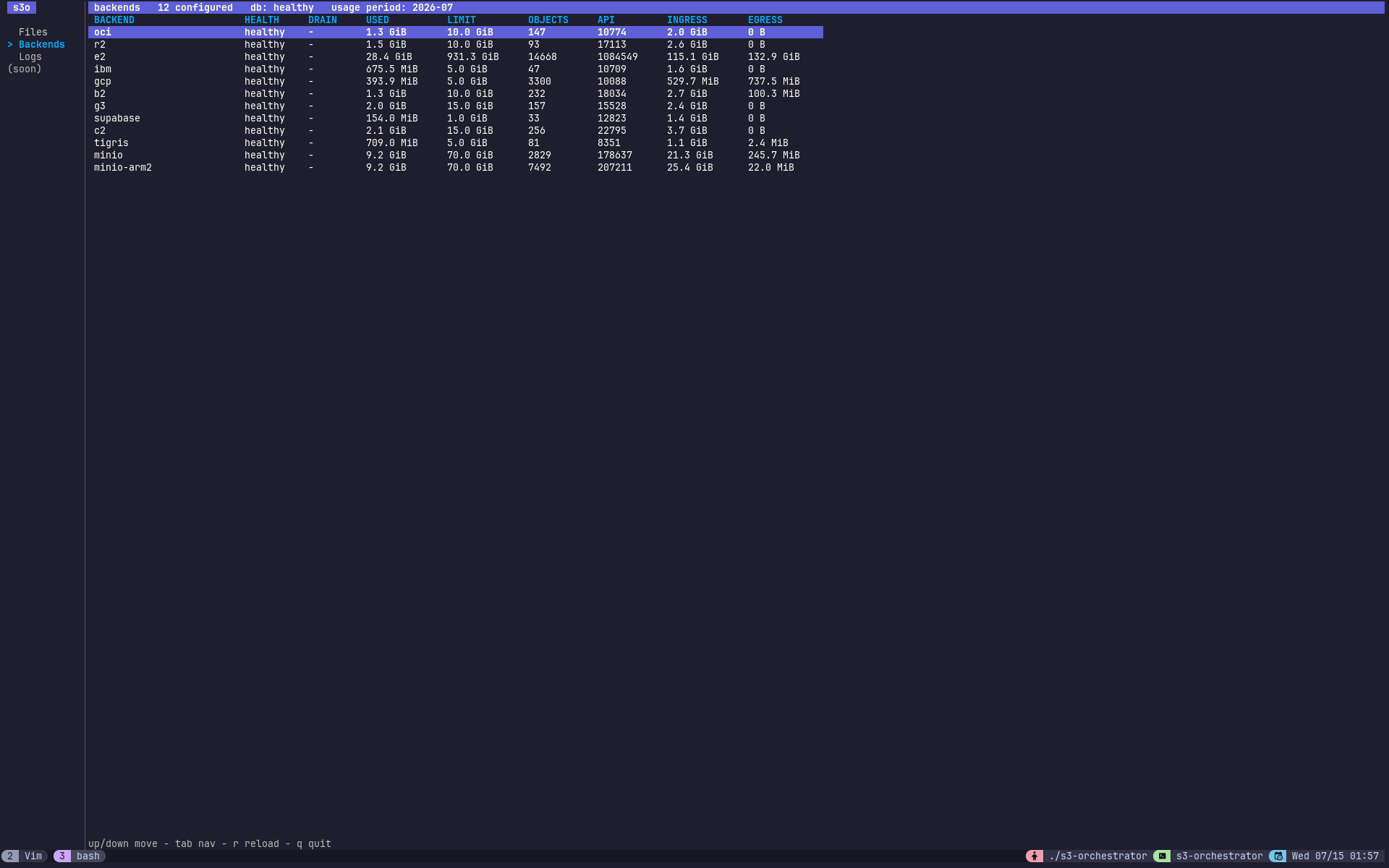
Reading the columns:
- HEALTH - the backend’s circuit-breaker state;
unhealthymeans the breaker has tripped and the backend is being skipped. - DRAIN -
drainingwhile a drain is evacuating the backend, otherwise-. - USED / LIMIT - quota bytes used against the configured limit (
-when no limit is set). - OBJECTS - object copies the backend holds.
- API / INGRESS / EGRESS - request count and bytes transferred for the current usage period, shown in the title bar.
The title bar also reports the metadata database health and the usage period the counters cover. Press r to refresh the snapshot. This is the interactive equivalent of s3-orchestrator admin status.
Step 5: Watch recent activity
Press l (or select Logs in the sidebar) to switch to the logs view - recent structured log entries from the instance’s in-memory buffer, the same source the web dashboard reads. Each row is the time, level, component, and a human-readable message with its structured attributes appended as key=value pairs, so you can follow what the instance is doing (PUTs, replication copies, drains, cleanup ticks) without tailing container logs. The level is colour-coded by severity so warnings and errors stand out. Press L to cycle the minimum-level filter (all / INFO / WARN / ERROR) and r to refresh.
Where it fits
The TUI is the interactive equivalent of s3-orchestrator admin object-locations -key <key>. Reach for it when you want to browse rather than look up a single key - for example to confirm replica placement before or after a drain, or to spot-check that a newly enabled replication factor has caught up across backends.