Maximizing Free Tiers
This guide walks through combining free-tier object storage from multiple cloud providers into a single, larger storage pool using S3 Orchestrator, from creating provider accounts to connecting your first application.
Overview
Most S3-compatible providers offer a free tier with a limited amount of storage and API requests. Individually these allocations are small, but S3 Orchestrator lets you stack them behind a single endpoint. The orchestrator handles routing writes to backends with available quota, overflowing to the next backend when one fills up.
The key tools for staying within free tiers are per-backend quotas and usage limits. Quotas cap stored bytes so you never exceed a provider’s free storage allowance. Usage limits cap monthly API requests, egress, and ingress so you avoid overage charges on metered dimensions.
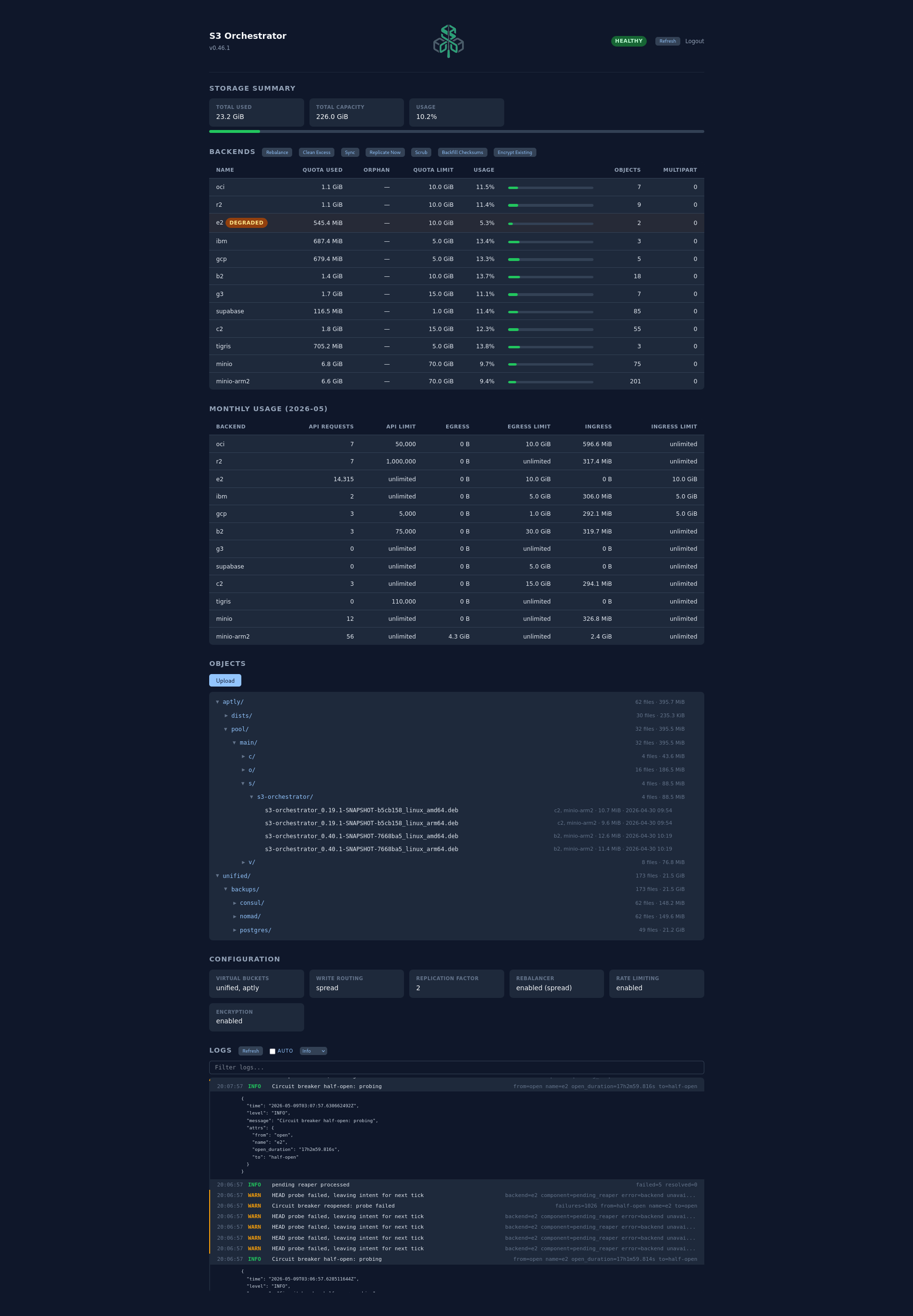
Below is the configuration used to run the setup shown above. Credentials are injected via Vault templates, but you can substitute environment variables or literal values.
Note
Google Cloud Storage requires three backend-level settings to work correctly:
disable_checksum: true— GCS does not support thex-amz-checksum-*headers that the AWS SDK sends by default.unsigned_payload: true— GCS does not supportSTREAMING-AWS4-HMAC-SHA256-PAYLOADchunked signing.strip_sdk_headers: true— AWS SDK v2 adds headers (amz-sdk-invocation-id,amz-sdk-request,accept-encoding) and a query parameter (x-id) that GCS does not include when verifying the SigV4 signature, causingSignatureDoesNotMatcherrors.
See the Admin Guide for more details.
Prerequisites
- S3 Orchestrator installed and running (see the Quickstart)
- A PostgreSQL database for the orchestrator’s metadata
- Accounts on two or more S3-compatible providers with free-tier allocations
Step 1: Identify Your Free-Tier Allowances
Check each provider’s free-tier limits. Common examples:
| Provider | Free Storage | Free API Requests | Free Egress |
|---|---|---|---|
| Oracle Cloud (OCI) | 10 GB | 50,000/mo | 10 GB/mo |
| Cloudflare R2 | 10 GB | 1,000,000/mo | Unlimited |
| Backblaze B2 | 10 GB | 75,000/mo | 30 GB/mo |
| iDrive e2 | 10 GB | Unlimited | 30 GB/mo |
| IBM Cloud | 5 GB | Unlimited | 5 GB/mo |
| Google Cloud (GCS) | 5 GB | 5,000/mo | 1 GB/mo |
| g3 (Gmail + Drive) | 15 GB | 12,000/min (Drive) | Unlimited |
With all seven providers you get 65 GB of combined storage behind a single S3 endpoint.
Tip
g3 is an S3-compatible gateway that uses Google Drive for object data and Gmail for metadata. Each free Google account provides 15 GB of storage. g3 runs as a service in your infrastructure and presents a standard S3 API that S3 Orchestrator connects to like any other backend. See the g3 project website for setup instructions.
Warning
Free-tier limits change without notice. Always verify current allowances on each provider’s pricing page before configuring quotas and usage limits. The numbers listed here are a starting point, not a guarantee.
Step 2: Get Credentials from Each Provider
Each provider gives you an access key and secret key for their S3-compatible API. These are the credentials the orchestrator uses to read and write objects on that provider.
Oracle Cloud (OCI)
- Log in to the OCI Console
- Go to Profile (top right) -> My Profile -> Customer Secret Keys
- Click Generate Secret Key, give it a name
- Copy the Secret Key immediately (it is only shown once)
- The Access Key appears in the list after creation
- Your S3 endpoint is
https://<namespace>.compat.objectstorage.<region>.oraclecloud.com(find your namespace under Tenancy Details) - Create a bucket in Object Storage -> Buckets
Cloudflare R2
- Log in to the Cloudflare Dashboard
- Go to R2 Object Storage -> Manage R2 API Tokens
- Click Create API Token, grant Object Read & Write permission
- Copy the Access Key ID and Secret Access Key
- Your S3 endpoint is
https://<account-id>.r2.cloudflarestorage.com(the account ID is on the R2 overview page) - Create a bucket under R2 -> Create bucket
Backblaze B2
- Log in to the Backblaze Console
- Go to App Keys -> Add a New Application Key
- Select the bucket (or All) and grant Read and Write access
- Copy the keyID (this is your access key) and applicationKey (this is your secret key)
- Your S3 endpoint is
https://s3.<region>.backblazeb2.com(the region is shown on your bucket details page, e.g.us-west-004) - Create a bucket under Buckets -> Create a Bucket
iDrive e2
- Log in to the iDrive e2 Console
- Go to Access Keys -> Create Access Key
- Copy the Access Key and Secret Key
- Your S3 endpoint is
https://<endpoint>.e2.cloudstorage.com(shown on the dashboard) - Create a bucket under Buckets -> Create Bucket
IBM Cloud Object Storage
- Log in to the IBM Cloud Console
- Create a Cloud Object Storage instance (the Lite plan is free)
- Go to Service credentials -> New credential, enable Include HMAC Credential
- Expand the credential to find
cos_hmac_keys.access_key_idandcos_hmac_keys.secret_access_key - Your S3 endpoint is
https://s3.<region>.cloud-object-storage.appdomain.cloud(find available regions under Endpoints) - Create a bucket under Buckets -> Create bucket, choose a Standard storage class
Google Cloud Storage (GCS)
- Log in to the Google Cloud Console
- Go to Cloud Storage -> Settings -> Interoperability
- If prompted, enable interoperability access for the project
- Under Access keys for service accounts, click Create a key for a service account (or use the default)
- Copy the Access Key and Secret
- Your S3 endpoint is
https://storage.googleapis.com - Create a bucket under Cloud Storage -> Buckets -> Create
Tip
Never commit provider credentials to version control. Use environment variables in your config file with the ${VAR} syntax, and inject them via systemd EnvironmentFile, container secrets, or a secrets manager.
Step 3: Configure Backends with Quotas and Usage Limits
Add each provider as a backend in your config.yaml. Set quota_bytes to match the provider’s free storage allowance, and use the usage limit fields to cap API requests, egress, and ingress per billing period.
When a backend hits a usage limit, reads fail over to replicas on other backends and writes overflow to backends that still have headroom.
Tip
Set limits slightly below the actual free-tier cap to give yourself a safety margin. The orchestrator’s adaptive flushing shortens the tracking interval as limits approach, but a small buffer avoids edge cases.
Step 5: Create a Virtual Bucket and Client Credentials
Your applications do not connect with the provider credentials above. Instead, you create a virtual bucket with its own set of credentials. These are standard S3 access key / secret key pairs that the orchestrator uses to authenticate your clients via AWS SigV4 signing.
Generate a credential pair:
Add them to your config:
You can create multiple virtual buckets with independent credentials for different applications or teams. Each bucket is isolated - clients can only access objects in their own bucket.
Step 6: Connect Your Application
Point your S3 client at the orchestrator’s endpoint using the virtual bucket credentials from Step 5. Any S3-compatible tool or SDK works with no modifications.
Your application has no knowledge of OCI, B2, R2, or any backend. It talks to a single S3 endpoint and the orchestrator handles the rest.
Step 7: Choose a Routing Strategy
The spread strategy distributes writes across backends, which helps keep usage balanced across all providers:
Alternatively, pack fills one backend before moving to the next, which can be useful if one provider has more generous limits.
Step 8: Monitor Usage
Use the web dashboard or Prometheus metrics to track how close each backend is to its limits:
- Storage quota:
s3o_backend_used_bytesvss3o_backend_quota_bytes - API requests:
s3o_backend_api_requests_total - Egress/Ingress:
s3o_backend_egress_bytes_total/s3o_backend_ingress_bytes_total
The dashboard shows per-backend quota bars and monthly usage charts so you can see at a glance how much headroom remains.
Adding More Providers
To expand your pool, add another backend with its own quota and usage limits. No existing configuration needs to change. The orchestrator picks up new backends on configuration reload.
Tip
Enable replication with a factor of 2 or more so that objects are copied across providers. This gives you redundancy and allows reads to fail over when one backend’s usage limits are reached.
Reduce API Calls with the Object Data Cache
If your workload reads the same objects frequently, enable the object data cache to serve repeated GETs from memory instead of hitting backends:
Each cache hit avoids one backend API request and the associated egress, which directly extends your free-tier headroom. The cache is especially effective for providers with low API request limits (e.g., OCI at 50,000/mo or GCS at 5,000/mo).
Tip
Size max_object_size to match your typical object sizes. If most of your objects are small config files or thumbnails, a 1-5 MB limit keeps the cache efficient. Large objects that would consume the entire cache are better left to direct backend reads.
Important Notes
- Quotas are enforced atomically on every write - you will never accidentally exceed a backend’s limit
- Usage limits reset monthly - the orchestrator tracks the current billing period automatically
- Adding or removing backends does not require downtime - reload the configuration and the orchestrator adjusts routing immediately
- Replication copies count against the destination backend’s quota and usage limits, so factor that into your calculations
- Backend credentials (from the provider) and client credentials (for your virtual buckets) are completely separate - rotating one does not affect the other